Install BlendCab and sign in
BlendCab installs like any Blender add-on: from the zip file, through Preferences. This takes about three minutes, and you only do it once. Updates later install from inside Blender.
Before you start
- Windows 10 or 11, 64-bit.
- Blender 4.0 or later; 5.2 LTS is recommended. It is free from blender.org.
- The BlendCab zip: download it from blendcab.com. Don’t unzip it; Blender installs the zip as it is.
Open Preferences
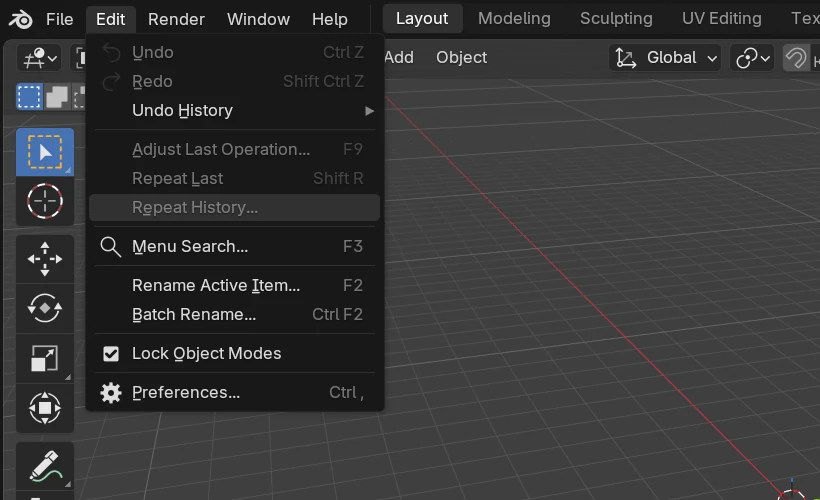
In Blender, open Edit › Preferences.
Choose Install from Disk
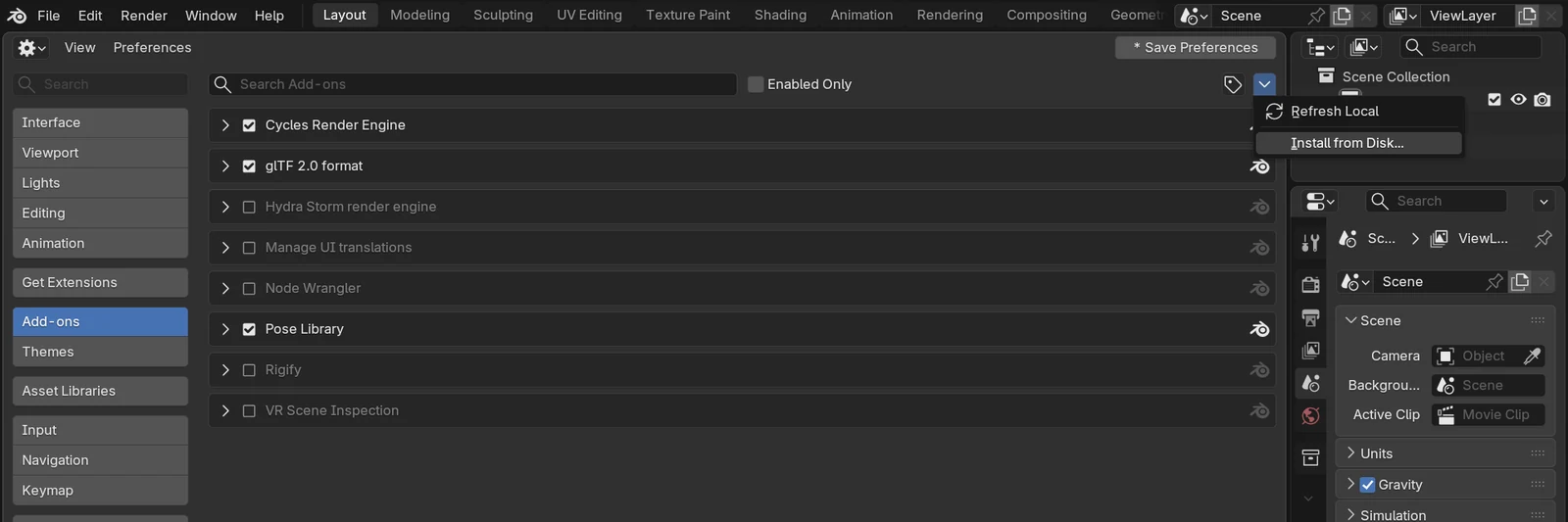
Go to Add-ons. Click the small drop-down arrow at the top right of the window and choose Install from Disk…
Pick the zip
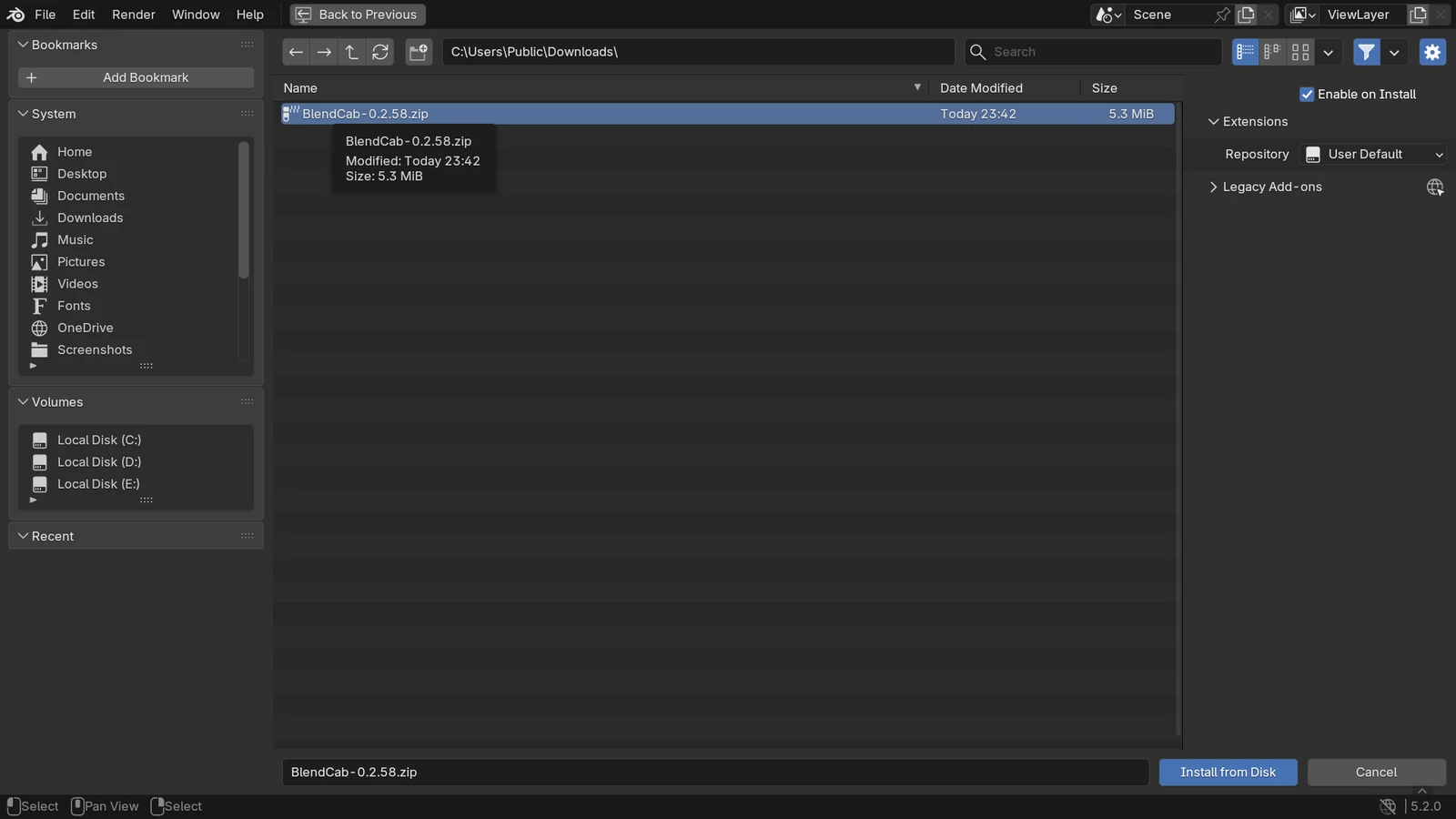
Find the BlendCab zip you downloaded, select it, and click Install from Disk.
Check that it is switched on
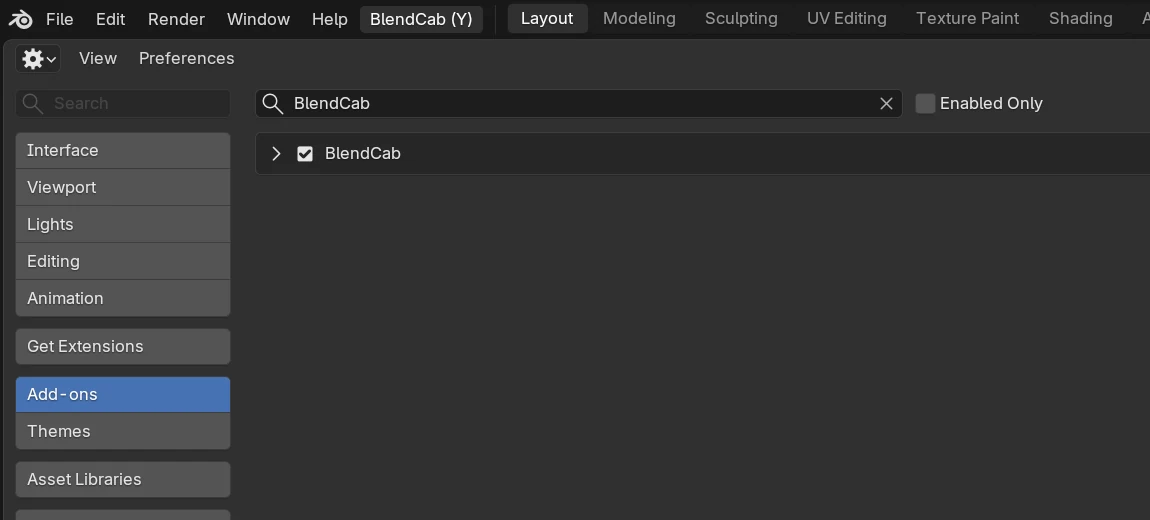
BlendCab appears in the add-on list with its box ticked. A BlendCab menu now sits in Blender’s top bar, next to Help. You can close Preferences.
Sign in, or sign up for a free trial
Open the BlendCab menu and choose Log In / Sign Up at the top. No account yet? Click Sign Up (7-Day Free Trial): the sign-up page opens in your browser, and every new account gets seven days of the design tools for free.
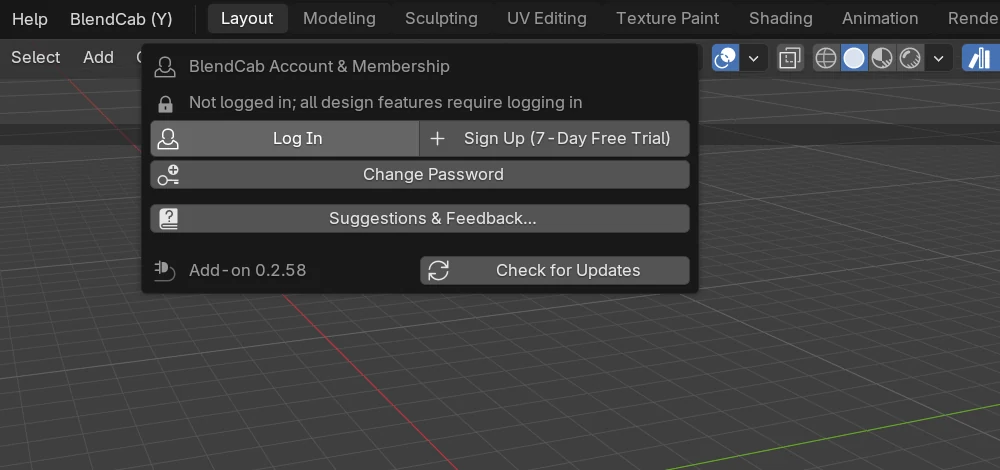
Enter your email and password
Click Log In, type the email and password of your BlendCab account, and click OK. Leave Remember Login on This Computer ticked so you stay signed in next time.
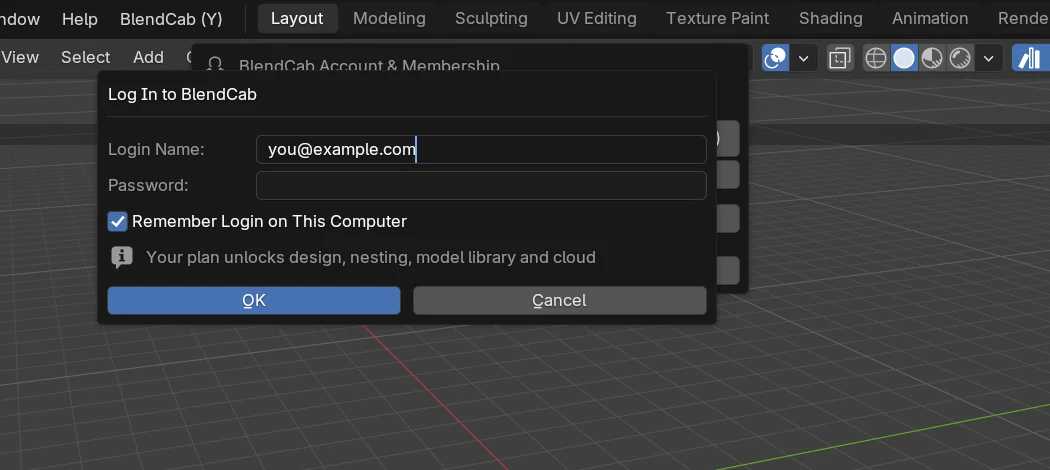
Check your plan and updates
The panel now shows your plan, the days left, and what it includes: Design, Nesting, Model Library and Cloud. Click Check for Updates; when a new version is out, you can read what changed and update in one click.
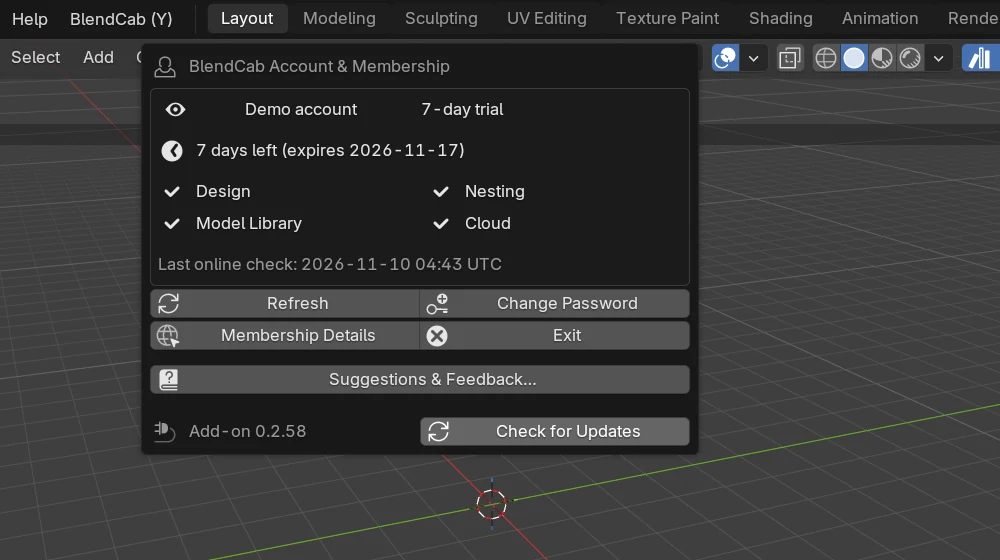
If something goes wrong
- No BlendCab menu after installing: open Preferences › Add-ons again, search for BlendCab and make sure its box is ticked.
- “Not a valid add-on” or nothing happens: you probably unzipped the file. Install the original
.zipinstead. - Features are greyed out: some tools need a plan that includes them. Nesting needs Standard or higher, the model library Pro or higher. See Pricing.
- Only download BlendCab from blendcab.com. Copies shared elsewhere may have been modified, and old versions ask you to update when you sign in.
Next, build your first cabinet in the quick start.